Help & User Guide
Welcome to the TimeTrack user guide. Here you will find detailed explanations of all features, settings, and controls available in the app.
Contents
App Screenshots

Functionality Overview
Timer Modes
Counts down from a set duration. When the timer reaches zero it can optionally repeat, either a fixed number of times or endlessly.
Counts up from zero to measure elapsed time. Quick-add buttons let you add preset durations to a running stopwatch.
Advanced Countdown Features
A countdown mode that alternates between an active phase and a rest phase, each with its own name and duration.
Countdown timers can repeat once, a set number of times, or endlessly. The repetition count is shown in the timer detail.
Timer List
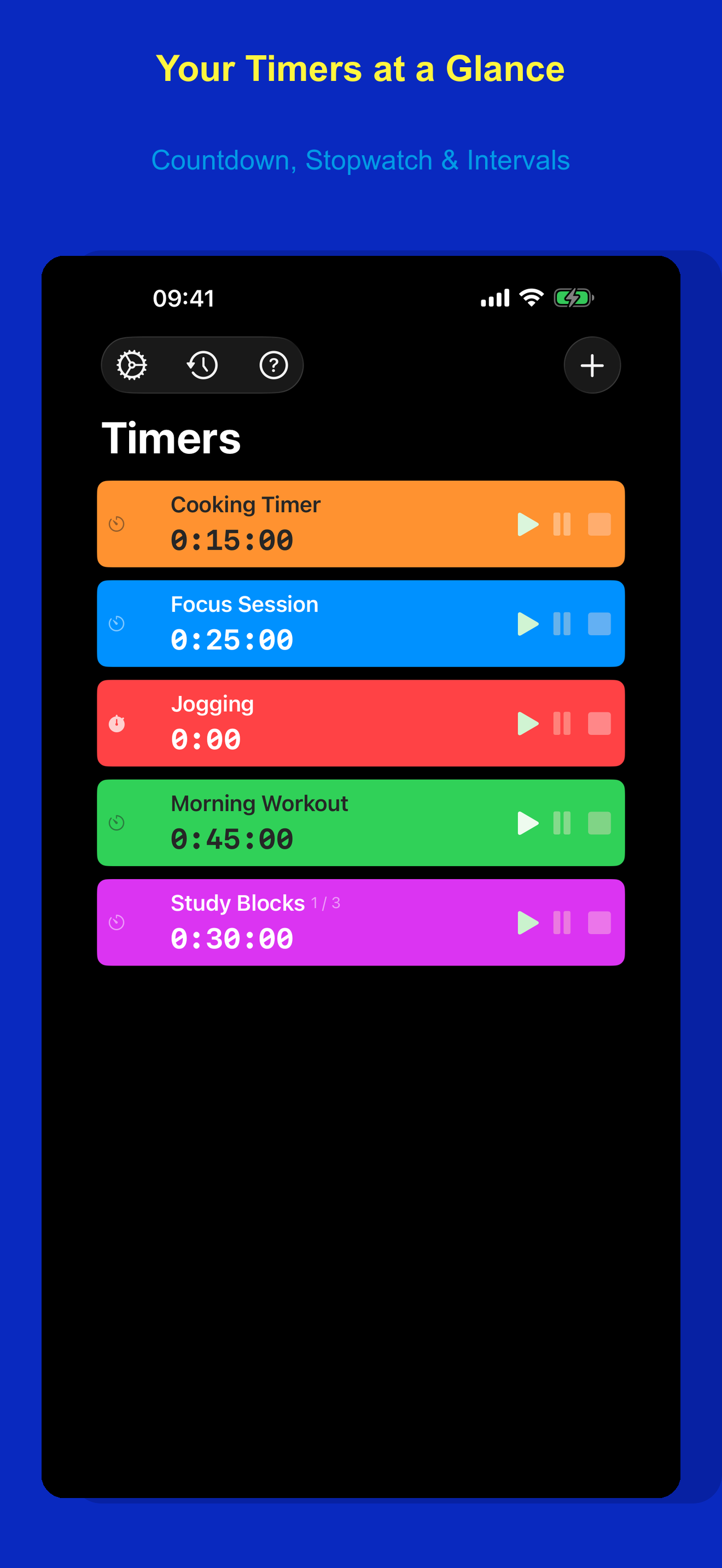
Each timer has a background color. The timer's state is shown by a status icon: a running-figure icon when active, a pause icon when paused, and no icon when stopped.
Timers can be sorted by name or duration, grouped by type (countdown vs. stopwatch), and optionally show active timers first.
History
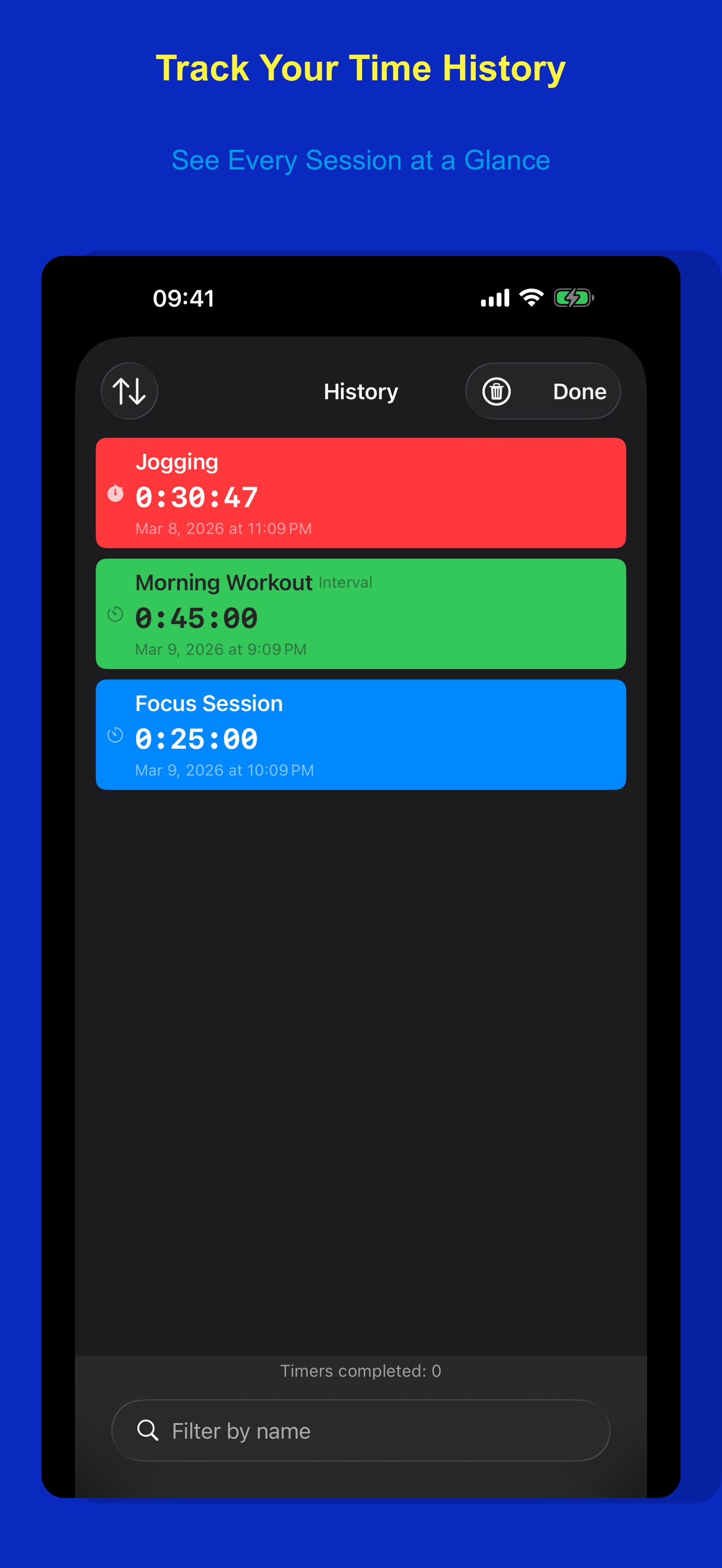
Completed countdown timers and stopped stopwatches are automatically recorded. You can view history entries and restore them as new timers.
Scheduling
When enabled, individual timers can be automatically paused or stopped at fixed times or at sunrise and sunset.
Platform Integrations
Small and medium home screen widgets. The small widget shows a single timer; the medium widget shows up to three timers in a cards or list layout. Both include control buttons.
Running timers appear on the lock screen and in the Dynamic Island with real-time progress and control buttons.
A companion watch app syncs all timers and lets you start, pause, and stop them from your wrist.
A watch face complication shows the currently active timer with a progress ring and remaining or elapsed time.
General Configuration
Appearance
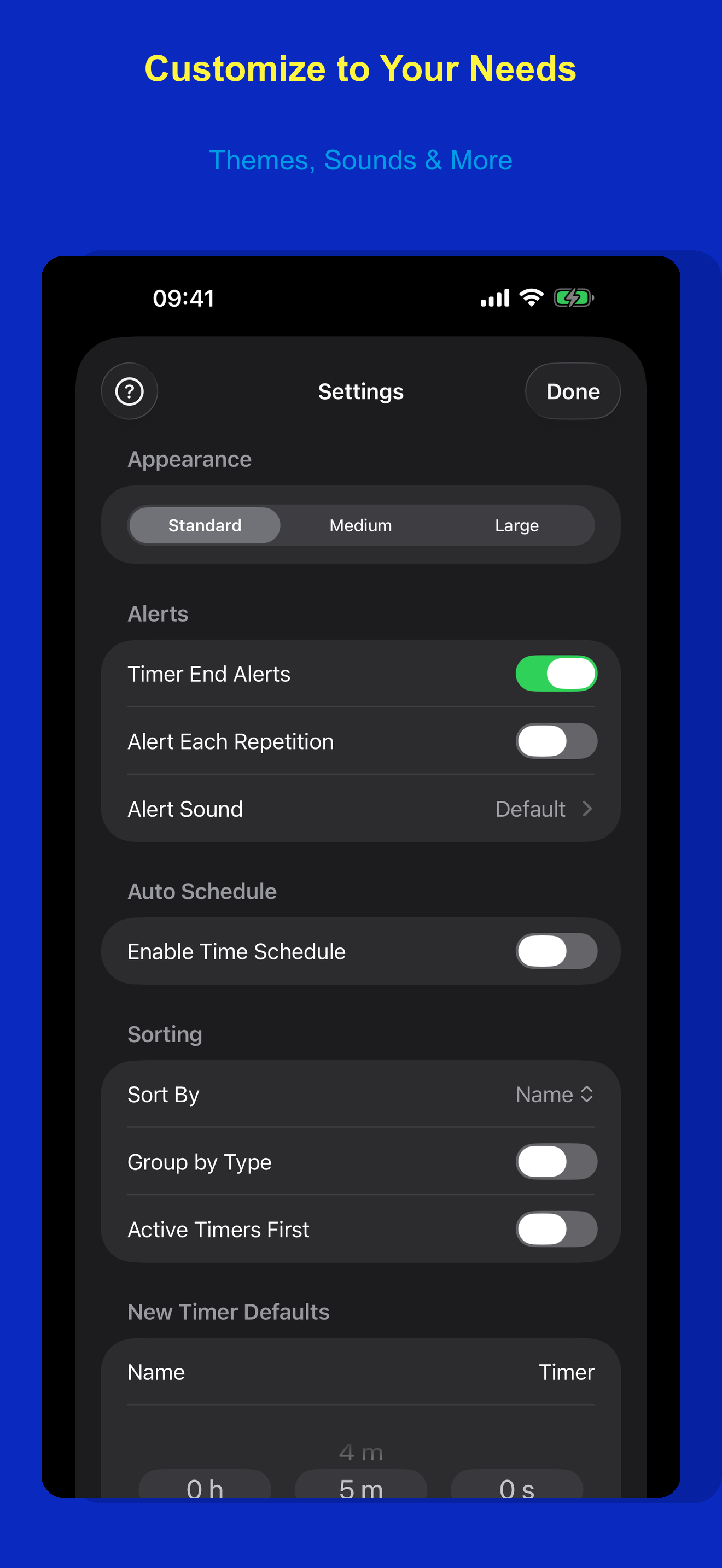
Choose between Standard, Medium, and Large. Each step scales all text one level up in Apple's type scale while preserving Dynamic Type accessibility settings.
Alerts
When enabled, a notification with sound and haptic feedback is triggered when a countdown timer reaches zero.
When enabled alongside Timer End Alerts, an alert is played at the end of every repetition cycle, not just the final one.
Select the sound played for timer alerts. Tap a sound to preview it.
Auto Schedule
Turns on the auto-schedule feature globally. Once enabled, each timer can be individually configured to pause or stop at specific times, including sunrise and sunset.
Sorting
Choose to sort timers by Name (alphabetically) or by Duration (ascending). Stopwatches are placed at the end when sorting by duration.
When enabled, the timer list is split into separate sections for countdowns and stopwatches.
When enabled, running and paused timers are shown in a separate section above stopped timers.
New Timer Defaults
The default name assigned to newly created timers.
The default duration for new countdown timers, set using the hours, minutes, and seconds picker.
The background color assigned to newly created timers. Each timer's color can be changed individually later.
Interval Timer Defaults
The default name for the active phase of new interval timers (e.g. "Active" or "Work").
The default name for the rest phase of new interval timers (e.g. "Rest" or "Break").
Timer Configuration
General
The display name shown on the timer card, in the detail view header, and on the widget and watch app.
The background color of the timer card. Text colors automatically adjust for readability against the chosen color.
Countdown Duration
A single countdown from the set duration to zero.
Alternates between an active phase and a rest phase. Each phase has its own name and duration.
In interval mode, you can name each phase (e.g. "Work" and "Break"). The current phase name is shown while the timer is running.
Set using a picker with hours, minutes, and seconds. In interval mode, each phase has its own duration picker. Duration cannot be changed while the timer is running.
Repeat (Countdown Only)
The timer runs a single cycle and stops.
The timer repeats for a set number of total runs (2 to 999). Progress is shown as a repetition counter.
The timer repeats indefinitely until manually stopped.
Auto Schedule (Per Timer)
Only available when Auto Schedule is enabled in general settings. Activates time-based automatic control for this specific timer.
Choose whether the timer is automatically paused or stopped when the scheduled time arrives.
Set a fixed time or use sunrise/sunset. The timer will be paused or stopped at this time each day.
When the action is Pause, set a time for the timer to automatically resume. Supports fixed times and sunrise/sunset.
Stopwatch Options
Three buttons that add a preset duration to the running stopwatch with a single tap. Useful for logging activities in fixed increments.
Expand the customization section to set each of the three quick-add durations using the hours, minutes, and seconds picker.
Timer Management
Adding & Deleting
Tap the + button in the top-right corner of the timer list. Choose between Countdown (counts down from a set duration) and Stopwatch (counts up from zero). The new timer opens immediately for configuration.
Swipe left on a timer card in the list to reveal the delete action. You can also delete a timer from the bottom of its detail view. Running timers are stopped before deletion.
Sorting & Grouping
Configure sorting in Settings. Timers can be sorted by name (alphabetically) or by duration (ascending, with stopwatches at the end).
Enable "Group by Type" in Settings to separate countdowns and stopwatches into their own list sections. Enable "Active Timers First" to show running and paused timers above stopped ones.
Timer History
Tap the history button (clock icon) in the top-left corner of the timer list. History shows all completed countdown timers and stopped stopwatches with their recorded duration and date.
Tap any history entry to create a new timer with the same name, duration, color, and settings. The restored timer is added to your timer list.
Use the sort menu in the history view to change the display order of history entries.
History Cleanup
Removes all entries from the history. This action cannot be undone.
Retains only a chosen number of the most recent history entries and deletes the rest.
For each timer name, keeps only the newest history entry and removes older duplicates.
Timer Control
Every timer has three states: running, paused, and stopped. A running timer shows a running-figure icon, a paused timer shows a pause icon, and a stopped timer has no status icon. The available controls depend on the current state and the surface you are using.
In-App Controls
Each timer card shows play, pause, and stop buttons. Tap play to start or resume, pause to temporarily halt, and stop to reset the timer.
The same three buttons appear in the timer detail view within the countdown or stopwatch section at the top.
System Controls
Both the small and medium widgets show contextual buttons for each timer: Start when stopped, Pause and Stop when running, Resume and Stop when paused.
Pause/Resume and Stop buttons on the lock screen banner. Control the timer without unlocking your device.
Long-press the Dynamic Island to expand it and access Pause/Resume and Stop controls.
Apple Watch
A two-button layout: a Play/Pause toggle that cycles between start, pause, and resume, plus a dedicated Stop button.
Tapping the complication opens the watch app where you can control the timer.
Action Reference
Begins a stopped timer from its initial duration (countdown) or from zero (stopwatch).
Temporarily halts the timer, preserving the current time. The timer can be resumed.
Continues a paused timer from where it was halted.
Ends the timer and resets it. For countdowns, resets to the full duration. For stopwatches, resets elapsed time to zero.
Home Screen Widget
Setup
Long-press on your home screen, tap the + button, and search for TimeTrack. Two widget types are available: a small widget for a single timer and a medium widget for up to three timers.
Small Widget
Displays one selected timer with its name, current time, a progress bar, and control buttons.
Long-press the widget and choose "Edit Widget" to select which timer is displayed.
Medium Widget
Displays up to three selected timers side by side. Choose between two display styles in the widget configuration.
Shows each timer as a compact card with its name, time, progress bar, and control buttons arranged side by side.
Shows each timer as a horizontal row with its name, status, time, and control buttons stacked vertically.
Widget Controls
When the timer is stopped, a start button is shown to begin the countdown or stopwatch.
When the timer is running, a pause button lets you temporarily halt the timer without resetting it.
When the timer is paused, a resume button continues from where it was paused.
Stops the timer and resets it to its initial state. Available when the timer is running or paused.
Updates
The widget updates automatically when the timer state changes in the app, via Live Activity, or from the watch. Progress and remaining time stay in sync.
Live Activity & Dynamic Island
How It Works
A Live Activity starts automatically whenever a timer begins running. Each running or paused timer gets its own Live Activity.
The Live Activity ends when the timer is stopped or when a countdown completes its final repetition.
Lock Screen
Shows the timer name, current remaining or elapsed time, a progress indicator, and control buttons. Visible on the lock screen without unlocking the device.
Tap the pause button on the Live Activity to pause a running timer. When paused, a resume button appears to continue.
Tap the stop button to end the timer and dismiss the Live Activity.
Dynamic Island
When other apps are in the foreground, the Dynamic Island shows a compact pill with the timer icon and remaining or elapsed time.
Long-press the Dynamic Island to expand it, showing the full timer name, time display, progress, and control buttons.
Background
Live Activities continue updating even when the app is in the background. Timer state changes from the widget or watch are reflected on the Live Activity.
Apple Watch App & Complication
Watch App
All timers are synced from your iPhone to the watch automatically. The watch uses the same sort order and grouping settings as the iPhone app.
The watch app shows all your timers in a scrollable list with the timer name, current time, and state indicator.
Watch Controls
A single button toggles between play and pause. Tap to start a stopped timer, pause a running timer, or resume a paused timer.
Stops the timer and resets it to its initial state. Disabled when the timer is already stopped.
The watch provides haptic feedback when tapping control buttons, giving tactile confirmation of actions.
Bidirectional Sync
When you start, pause, or stop a timer on the watch, the change is immediately sent back to the iPhone. Both devices stay in sync.
Watch Complication
A watch face complication that shows the currently running timer. If multiple timers are running, the countdown ending soonest is shown; if only stopwatches are running, the first one is displayed.
Supported on Circular (progress ring), Corner (progress arc), Inline (text), and Rectangular (full display with name and time) complication families.
The complication refreshes automatically when a timer ends and at regular intervals to keep the displayed time accurate.
Still Need Help?
If your question is not answered here, please contact us.